As organizations move to support hybrid and remote workforces, and continue to adopt cloud-based endpoint management with services such as Intune, managing updates is critical.
Windows Autopatch is a cloud service that automates Windows, Microsoft 365 Apps for enterprise, Microsoft Edge, and Microsoft Teams updates to improve security and productivity across your organization.
A successful Windows Autopatch deployment starts with planning and determining your objectives. Use this deployment guide to plan your move or migration to Windows Autopatch.
This section details some common objectives when using Windows Autopatch.
Once an organization is onboarded, Windows Autopatch automatically creates multiple progressive deployment rings and applies the latest updates according to Windows Autopatch recommended practices and your organization's custom configuration. While there are options to adjust configurations such as quality update cadence, the service provides you with a baseline to begin establishing your update objectives.
Use Windows Autopatch to solve the following challenges:
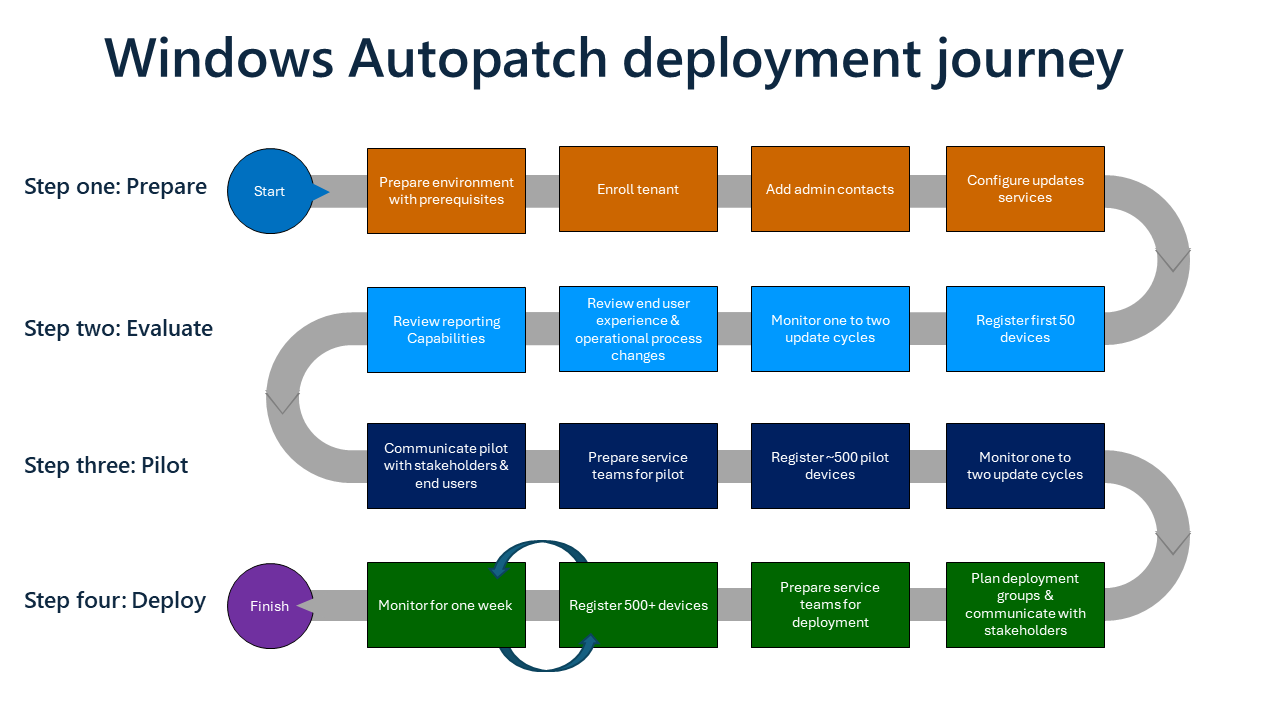
The following deployment steps can be used as a guide to help you to create your organization's specific deployment plan to adopt and deploy Windows Autopatch.
Review the prerequisites and enroll your tenant into the Windows Autopatch service. At this stage, your devices aren't affected. You can enroll your tenant and review the service options before registering your devices.
Evaluate Windows Autopatch with around 50 devices to ensure the service meets your needs. You can adjust this number based on your organizational make-up. It's recommended to monitor one update cycle during this evaluation step.
There might be times when using Windows Autopatch for update deployment that it's beneficial to review Windows Update for Business (WUfB) reports.
Plan to pilot the service with around 500 devices to provide sufficient pilot coverage to be ready for deployment. You can adjust this number based on your organizational make-up. It's recommended to monitor one to two update cycles during the pilot step.
Following a successful pilot, you can commence deployment to your broader organization. The pace at which you deploy is dependent on your own requirements; for example, deploying in groups of 500 to 5000 per week are commonly used approaches to complete the deployment of Windows Autopatch.
If you're an existing Windows Update for Business (WUfB) or Configuration Manager customer, there are several considerations that could accelerate your deployment along a shorter path.
Customers who are using Windows Update for Business (WUfB) or Configuration Manager can quickly adopt Windows Autopatch and take advantage of the key benefits that Windows Autopatch provides.
When moving from Windows Update for Business (WUfB) or Configuration Manager to Windows Autopatch, you can enhance and optimize the update experience that you're already familiar with.
Once migrated, there are several configuration tasks that you no longer need to carry out:
In addition to the reports, other benefits include:
| Autopatch benefit | Configuration Manager and Windows Update for Business (WUfB) |
|---|---|
| Windows quality and feature update reports with integrated alerts, deep filtering, and status-at-a-glance | Requires you to manually navigate and hunt for status and alerts |
| Filter by action needed with integrated resolution documentation | Requires you to research and discover possible actions relating to update issues |
| Better visibility for IT admins, Security compliance and proof for regulator | Requires you to pull together different reports and views across multiple admin portals |
Service management benefits include:
| Autopatch benefit | Configuration Manager and Windows Update for Business (WUfB) |
|---|---|
| Windows automation and Microsoft Insights | First or third-party resources required to support and manage updates internally |
| Microsoft research and insights determine the 'go/no-go' for your update deployment | Limited signals and insights from your organization to determine the 'go/no-go' for your update deployment |
| Windows Autopatch might pause or roll back an update. The pause or rollback is dependent on the scope of impact and to prevent end user disruption | Manual intervention required, widening the potential impact of any update issues |
| By default, Windows Autopatch expedites quality updates as needed. | Manual intervention required, widening the potential impact of any update issues |
When moving from Windows Update for Business (WUfB) to Windows Autopatch, you can accelerate and simplify your adoption by assessing your readiness to quickly migrate to the Windows Autopatch service by considering key differences that might impact your deployment:
| Step | Assessment step | Recommendation |
|---|---|---|
| 1 | "User based" vs. "device based" targeting | Windows Autopatch doesn't support "user based" targeting. If your Windows Update deployment is "user based", you must plan to move to a device-based targeting model by adding and registering devices into Windows Autopatch. Use the Consider your Autopatch groups guidance |
| 2 | Microsoft Edge channels | Windows Autopatch deploys Microsoft Edge Stable channel to devices in all deployment rings except for the Test deployment ring. The Test deployment ring is configured for the Microsoft Edge Beta channel. If you're currently using different channels, your teams should understand that your Windows Autopatch devices use these channels. For more information, see Confirm update service needs and configure your workloads. |
| 3 | Microsoft 365 Apps for enterprise | Windows Autopatch deploys the Monthly Enterprise Channel to all Microsoft 365 Apps for enterprise clients. If your organization is using a different channel and you don't wish to adopt the Monthly Enterprise Channel, you can opt out Microsoft 365 Apps for enterprise updates. For more information, see Confirm update service needs and configure your workloads |
| 4 | Prepare your policies | You should consider any existing policy configurations in your Windows Update for Business (WUfB), Intune or on-premises environment that could impact your deployment of Windows Autopatch. For more information, review General considerations |
| 5 | Network optimization technologies | We recommend you consider your network optimization technologies as part of your Windows Autopatch deployment. However, if you're already using Windows Update for Business (WUfB) it's likely you already have your network optimization solution in place. For more information, see Review network optimization |
Once you have assessed your readiness state to ensure you're aligned to Windows Autopatch readiness, you can optimize your deployment of Windows Autopatch to quickly migrate to the service. The following steps illustrate a recommended optimized deployment path:
Regardless of if you're migrating from Configuration Manager to Microsoft Intune or if you're remaining with Configuration Manager, if you're currently using Configuration Manager to manage updates, you can migrate the update workloads to Windows Autopatch and take advantage of the key benefits for your Configuration Manager environment.
When you migrate from Configuration Manager to Windows Autopatch, the fastest path to quickly gain value from Windows Autopatch is to already have co-management and the requisite workloads moved to Intune.
| Step | Assessment step | Recommendation |
|---|---|---|
| 1 | Turn on co-management | If you're using co-management across Configuration Manager and your managed devices, you meet the key requirements to use Windows Autopatch. |
Once you have assessed your readiness state to ensure you're aligned to Windows Autopatch readiness, you can optimize your deployment of Windows Autopatch to quickly migrate to the service. The following steps illustrate a recommended optimized deployment path:
As part of your planning process, you should consider any existing enterprise configurations in your environment that could affect your deployment of Windows Autopatch.
Many organizations have existing policies and device management infrastructure, for example:
It's a useful exercise to create a baseline of your policies and existing settings to map out the configuration that could impact your move to Windows Autopatch.
Review existing policies and their structure. Some policies might apply globally, some apply at the site level, and some are specific to a device. The goal is to know and understand the intent of global policies, the intent of local policies, and so on.
On-premises AD group policies are applied in the LSDOU order (Local, Site, Domain, and Organizational Unit (OU)). In this hierarchy, OU policies overwrite domain policies, domain policies overwrite site policies, and so on.
| Area | Path | Recommendation |
|---|---|---|
| Windows Update Group Policy settings | Computer Configuration\Administrative Templates\Windows Components\Windows Updates | The most common Windows Update settings delivered through Group Policy can be found under this path. This is a good place for you to start your review. |
| Don't connect to any Windows Update Internet locations | Computer Configuration\Administrative Templates\Windows Components\Windows update\Do not connect to any Windows Update Internet locations | This is a common setting for organizations that rely solely on intranet update locations such as Windows Server Update Services (WSUS) servers and can often be overlooked when moving to cloud update services such as Windows Update for Business (WUfB) |
Any policies, scripts or settings that create or edit values in the following registry keys might interfere with Windows and Office Update settings delivered through Autopatch. It's important to understand how these settings interact with each other and with the Windows and Office Update service as part of your Autopatch planning.
Look at the UpdateChannel value. The value tells you how frequently Office is updated.
For more information about Windows Update Settings for Group Policy and Mobile Device Management (MDM), see Manage additional Windows Update settings.
When Configuration Manager is deployed, and if Software Update policies are configured, the Software Update policies could conflict with Windows Update for Business and Office Update policies.
Configuration Manager could require custom settings to disable software updates and assist with troubleshooting conflicting legacy, on-premises configurations to ensure that Autopatch deliver Windows and Office updates. It's safe to implement this change if you aren't managing third party updates from Configuration Manager.
To ensure that Software Update Policies don't conflict with Windows Update for Business (WUfB) and Office Update policies, create a Software Update Policy in Configuration Manager that has:
If this policy remains live, confirm that Autopatch devices aren't included in the live Software Update Policy in Configuration Manager.
All devices that are enrolled in Autopatch use Windows and Office Update policies from the service, and any configurations that are applied through Configuration Manager Software Update Policies can be removed.
For example, Configuration Manager Software Update Policy settings exclude Autopatch enrolled devices from receiving conflicting configuration for Windows and Office Updates:
| Device setting | Recommended configuration |
|---|---|
| Enable software updates | No |
| Enable management of the Office 365 Client Agent | No |
There is no requirement to create a Configuration Manager Software Update Policy if the policies aren't in use.
| Policy | Description |
|---|---|
| MDM to win over GP | As part of the tenant enrollment process, Autopatch deploys a Device configuration profile, which applies to all registered devices to set Mobile Device Management (MDM) to win over Group Policy (GP) with the "MDMWinsOverGP" CSP. |
When applied, any MDM policy that's set, and has an equivalent GP Policy, results in the GP service blocking the policy setting. Setting the value to 0 (zero) or deleting the policy removes the GP policy blocks and restore the saved GP policies.
You can use automation to deliver monthly updates to Microsoft 365 Apps for enterprise directly from the Office Content Delivery Network (CDN) using Servicing profiles. A servicing profile takes precedence over other policies, such as a Microsoft Intune policy or the Office Deployment Tool. The servicing profile affects all devices that meet the device eligibility requirements regardless of existing management tools in your environment.
You can consider retargeting servicing profiles to non-Windows Autopatch devices or if you plan to continue using them, you can block Windows Autopatch delivered Microsoft 365 App updates for Windows Autopatch-enrolled devices.
Part of your planning might require articulating the business benefits of moving to Windows Autopatch from your existing update solution(s). Windows Autopatch provides several resources to help when building your business case.
Change management relies on clear and helpful communication about upcoming changes. The best way to have a smooth deployment is to make sure end users and stakeholders are aware of all changes and disruptions. Your rollout communication plan should include all pertinent information, how to notify users, and when to communicate.
Review your original objectives and business case with your key stakeholders to ensure your outcomes have been met and to ensure your expected value has been achieved.
If you need assistance with your Windows Autopatch deployment journey, you have the following support options:
First contact your Microsoft Account team who can work with you to establish any guidance or support you might need. If you don't have a Microsoft Account Team contact or wish to explore other routes, Microsoft FastTrack offers Microsoft 365 deployment guidance for customers with 150 or more licenses of an eligible subscription at no additional cost. Finally, you can also log a support request with the Windows Autopatch Service Engineering Team.
Once you're underway with your deployment, consider joining the Windows Commercial Advisors (WCA) community within the Microsoft Management Customer Connection Program (MM CCP), where you can:
